A frame changes the picture
Cropping often looked fine until I started resizing the page. An image or video could work at one width, then lose an important detail as the layout changed. The source stayed the same, but the space available to display it changed shape.
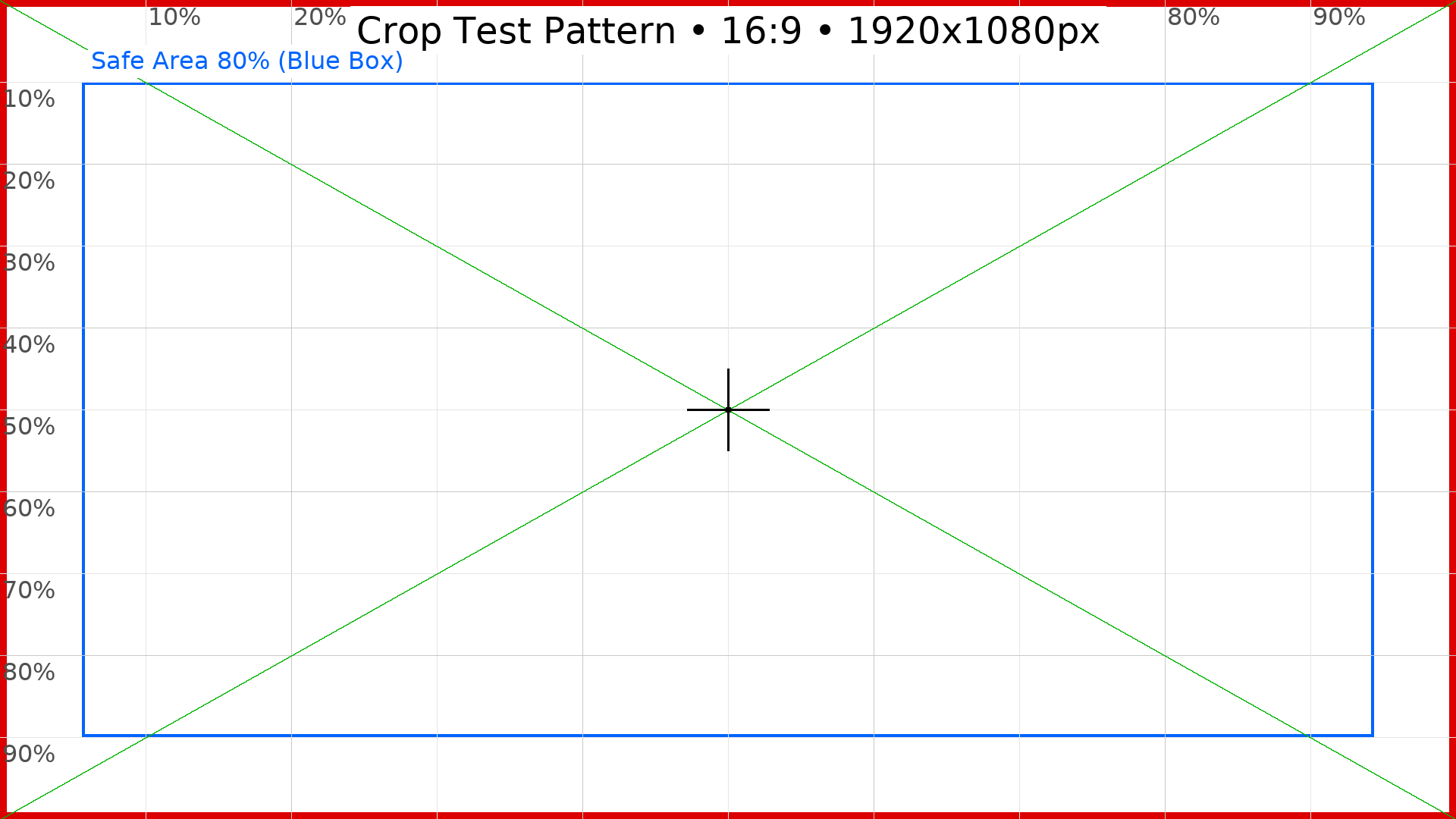
That was when I found these patterns useful. With a normal image, I could tell that something had been cropped, but it was harder to judge exactly how much. The grid gave me reference points to follow while resizing: I could easily see what stayed visible, what slipped out of frame, and how far the safe area extended.
That was the useful part for me: being able to see where important details could sit without disappearing outside the frame. It made it easier to judge the space available for a face, a logo, or text within the media.
The safe area depends on where the media appears and how its container changes as the page resizes. I look for the area that stays visible across the widths and layouts I am testing, including the sizes between breakpoints. The patterns help reveal that shared space; a marked box alone cannot guarantee it for every crop.
Try the crop playground
The playground below lets you explore the same idea. Drag the frame’s right edge or use the width slider to narrow it while its height stays fixed. Keep the source unchanged and watch what disappears as the frame resizes. The frame presets provide shortcuts to familiar shapes; the position controls let you adjust which part stays in view. Watch the highlighted region in the original-image overview: the preview shows the result; the overview shows what was removed.
Crop playground
Resize the frame. See what stays visible.
Drag the right edge or use the slider. Height stays fixed.
Fill the frame. Crop the excess. Drag to reframe.
Source map
The highlighted area stays in frame.
Position
Media: CC0. Free for personal and commercial use. No attribution required. Provided as is; warranty and liability disclaimer applies to the extent permitted by law.
Three ways to fit the same source
Cover preserves the source proportions and fills the frame. When the ratios differ, some of the source falls outside the frame. Positioning determines which part stays visible.
Contain preserves the proportions and shows the whole source. Different ratios leave empty space. Positioning moves the source within that space.
Fill stretches the source to match the frame. Nothing is cropped, but the proportions can change. Compare the grid cells to see the distortion.
The position controls correspond to CSS object-position. They align the source within the available space; they do not select a subject or perform automatic focal-point detection.
Test motion too
Switch to video to see the pattern in motion. Playback starts automatically, muted, when you select video. The same fitting rules apply, but a moving detail can cross the crop boundary during playback. Pause at any point to inspect a frame.
The overview uses a static reference image of the same source ratio. It shows the crop geometry, not a synchronized video frame.
Download and use the patterns
The core pack contains PNG and MP4 files in 1:1, 4:5, 16:9, and 9:16. Upload a pattern wherever you would normally use an image or video, then resize the page and follow the grid as the layout responds. Check the widths between your usual desktop and mobile sizes too: those are easy places to miss an awkward crop.
Download the core crop-test pack
The PNG and MP4 files are free to use, modify and share for personal and commercial projects under CC0 1.0, with no attribution required. They are provided as is, without warranties; liability is disclaimed to the fullest extent permitted by applicable law. See the full disclaimer. These terms apply to the test media only, not this article or the site code.
The blue reference boxes have different insets across the patterns. Use the percentage grid to compare crops, and treat the “safe area” label as a guide rather than a guarantee that content will survive every layout.